


loading.js
The special file loading.js helps you create meaningful Loading UI with React Suspense. With this convention, you can show an instant loading state from the server while the content of a route segment streams in. The new content is automatically swapped in once complete.
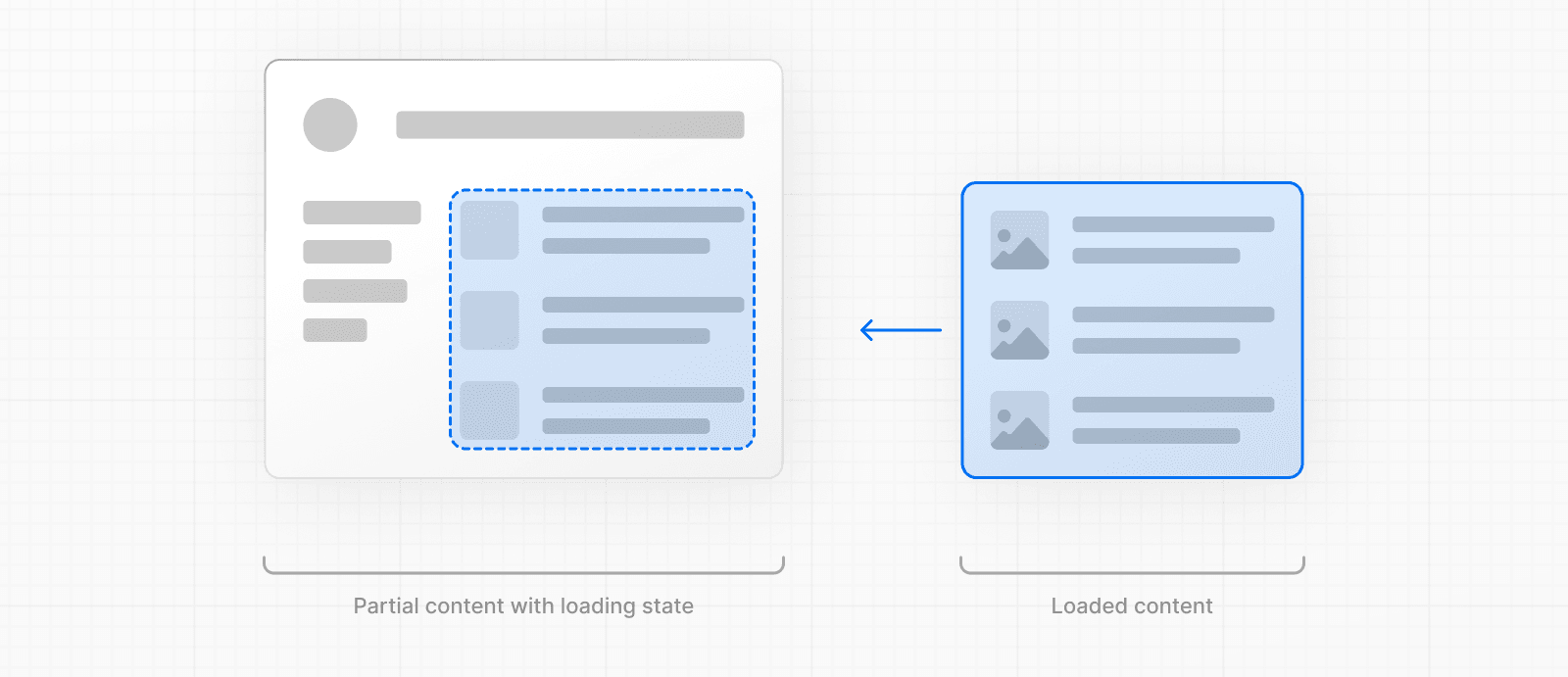
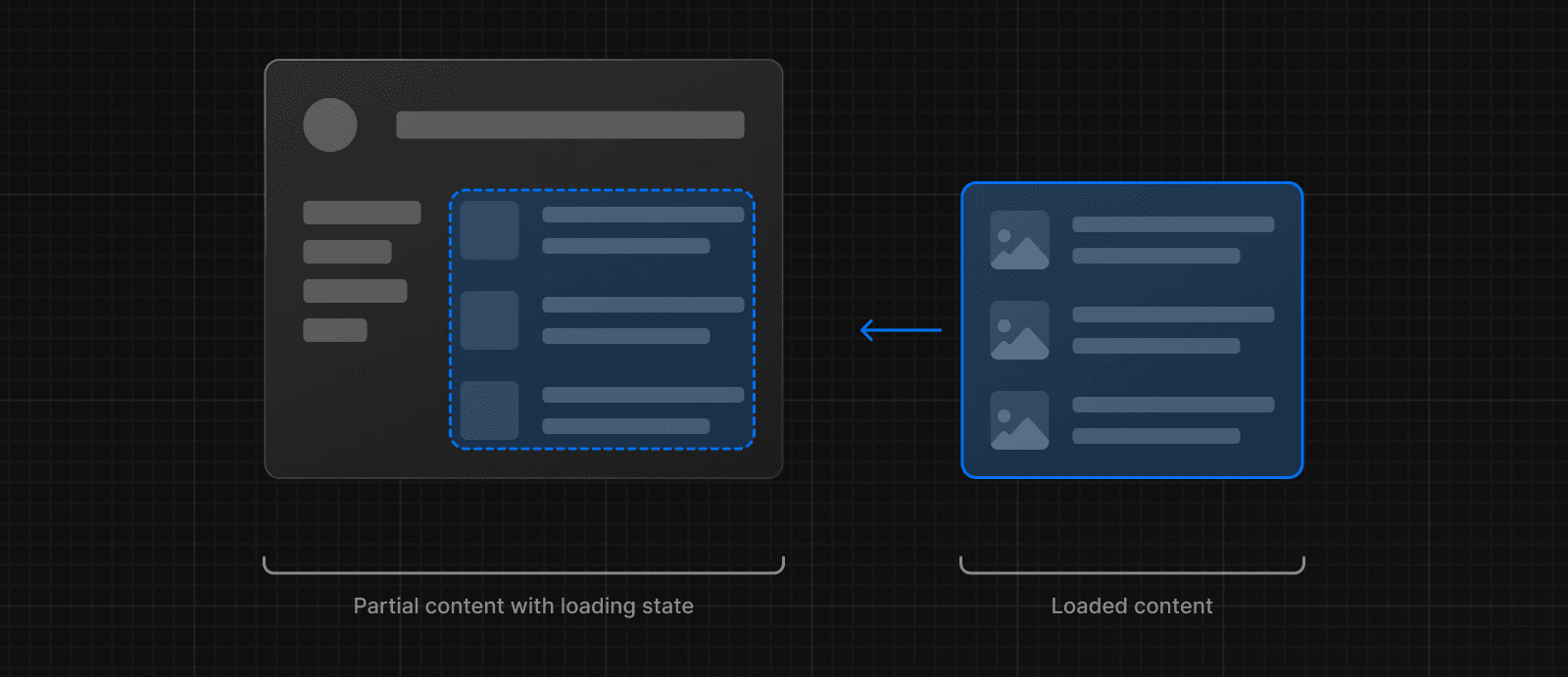
Inside the loading.js file, you can add any light-weight loading UI. You may find it helpful to use the React Developer Tools to manually toggle Suspense boundaries.
By default, this file is a Server Component - but can also be used as a Client Component through the "use client" directive.
Reference
Parameters
Loading UI components do not accept any parameters.
Behavior
Navigation
- The Fallback UI is prefetched, making navigation immediate unless prefetching hasn't completed.
- Navigation is interruptible, meaning changing routes does not need to wait for the content of the route to fully load before navigating to another route.
- Shared layouts remain interactive while new route segments load.
Instant Loading States
An instant loading state is fallback UI that is shown immediately upon navigation. You can prerender loading indicators such as skeletons and spinners, or a small but meaningful part of future screens such as a cover photo, title, etc. This helps users understand the app is responding and provides a better user experience.
Create a loading state by adding a loading.js file inside a folder.


In the same folder, loading.js will be nested inside layout.js. It will automatically wrap the page.js file and any children below in a <Suspense> boundary.
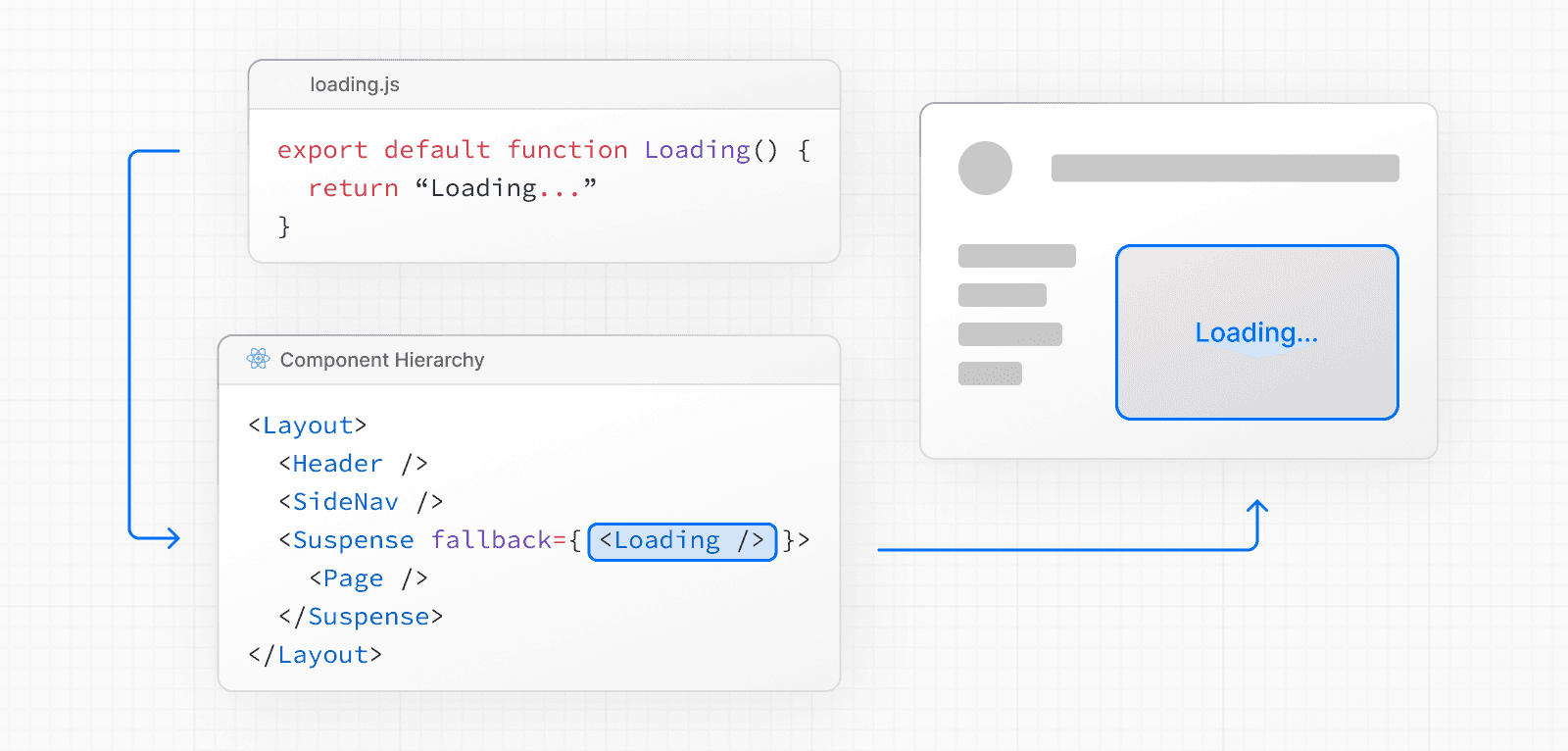
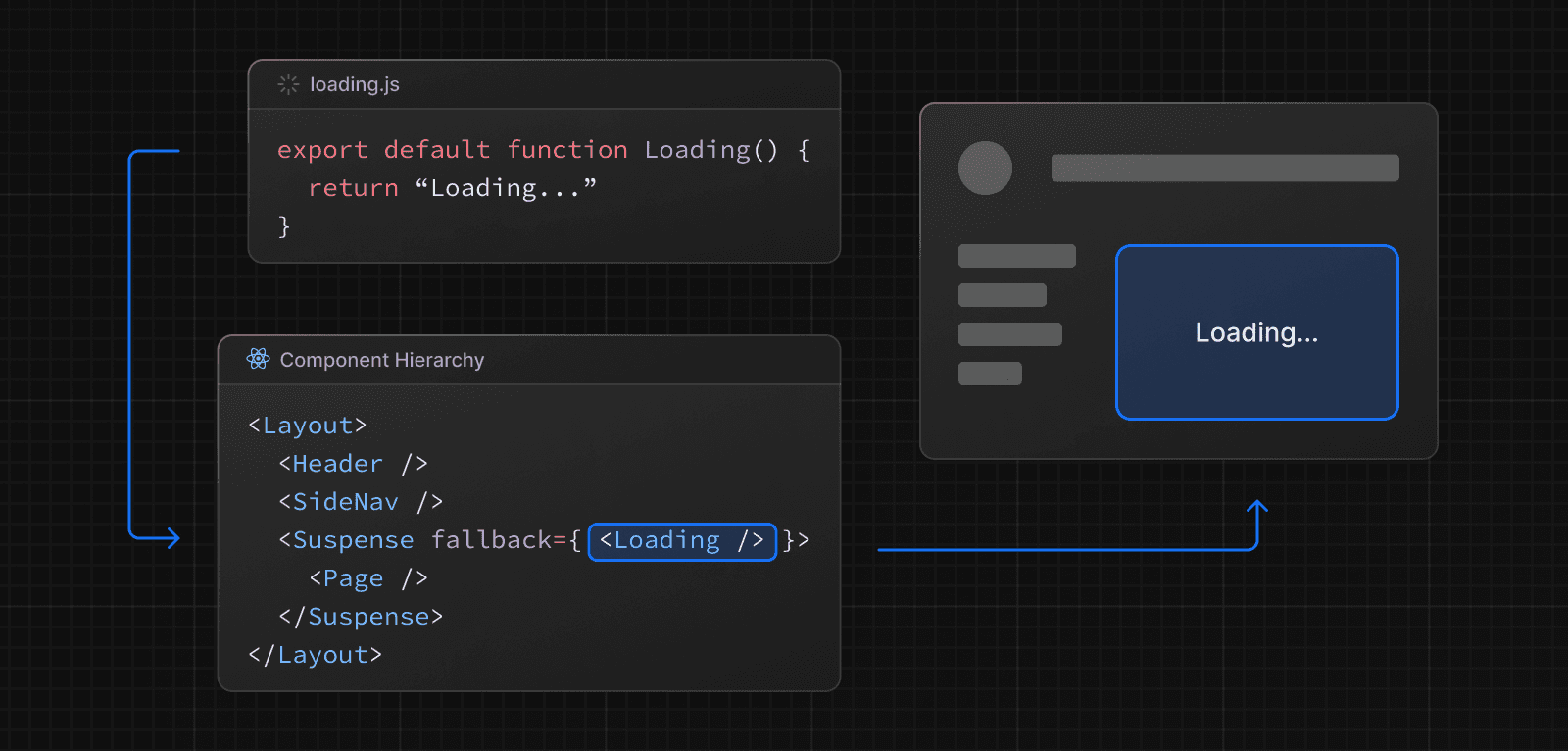
In the component hierarchy, loading.js wraps not-found.js, page.js, and nested layout.js files in a <Suspense> boundary. It does not wrap the layout.js, template.js, or error.js in the same segment.
Good to know
If the layout accesses uncached or runtime data (e.g. cookies(), headers(), or uncached fetches), loading.js will not show a fallback for it.
- Without Cache Components: Navigation blocks until the layout finishes rendering.
- With Cache Components: Uncached or runtime data access in the layout must be explicitly wrapped in
<Suspense>, otherwise Next.js guides you with a build-time error. The static shell streams first, and the uncached content fills in.
To ensure instant navigation, move uncached data fetching from layout.js into page.js, or wrap the runtime data access in your layout in its own <Suspense> boundary. See layout.js Caveats for details and examples.
SEO
- For bots that only scrape static HTML, and cannot execute JavaScript like a full browser, such as Twitterbot, Next.js resolves
generateMetadatabefore streaming UI, and metadata is placed in the<head>of the initial HTML. - Otherwise, streaming metadata may be used. Next.js automatically detects user agents to choose between blocking and streaming behavior.
- Since streaming is server-rendered, it does not impact SEO. You can use the Rich Results Test tool from Google to see how your page appears to Google's web crawlers and view the serialized HTML (source).
Status codes
Streaming page responses begin with a 200 status code.
The initial response headers set the status for the rest of the response. Next.js can then stream redirects and HTTP access fallbacks with redirect, notFound, forbidden, or unauthorized.
Good to know
With Cache Components, Next.js sends the prerendered shell first, along with headers that preload resources such as CSS, fonts, and images. Sending the shell starts the response with a 200, even when the shell has no visible UI.
For example, when a 404 page is streamed to the client, Next.js includes a <meta name="robots" content="noindex"> tag in the streamed HTML. This prevents search engines from indexing that URL even if the HTTP status is 200. See Google’s guidance on the robots meta tag.
For more context, see Does streaming affect SEO and can streamed content be indexed? and How Google handles JavaScript throughout the indexing process.
Some crawlers may label these responses as “soft 404s”. The noindex tag keeps them out of search results.
Run the corresponding check before streaming starts to return a 404, 403, or 401 status for compliance or analytics.
For a 404, you can check the slug in Proxy, then rewrite it to a not-found route or return a 404 response. Keep Proxy checks fast, and avoid fetching full content there.
When does streaming start?
Starting the stream sends the headers and fixes the status code.
Without Cache Components, rendering a fallback from loading.js or <Suspense> starts streaming. If neither has started the response, Next.js can still return a 404, 403, or 401 when the corresponding interrupt runs.
With Cache Components, an interrupt can preserve its status when it runs during prerendering, before the response begins. A request-time check inside the page runs after the shell is sent, even when the shell is empty and the route sets instant = false, so the status remains 200.
Browser limits
Some browsers buffer a streaming response. You may not see the streamed response until the response exceeds 1024 bytes. This typically only affects “hello world” applications, but not real applications.
Platform Support
| Deployment Option | Supported |
|---|---|
| Node.js server | Yes |
| Docker container | Yes |
| Static export | No |
| Adapters | Platform-specific |
Learn how to configure streaming when self-hosting Next.js.
Examples
Streaming with Suspense
In addition to loading.js, you can also manually create Suspense Boundaries for your own UI components. The App Router supports streaming with Suspense. See the Streaming guide for more on how streaming works, including granular Suspense patterns, Route Handler streaming, and infrastructure considerations.
<Suspense> works by wrapping a component that performs an asynchronous action (e.g. fetch data), showing fallback UI (e.g. skeleton, spinner) while it's happening, and then swapping in your component once the action completes.
By using Suspense, you get the benefits of:
- Streaming Server Rendering - Progressively rendering HTML from the server to the client.
- Selective Hydration - React prioritizes what components to make interactive first based on user interaction.
For more Suspense examples and use cases, please see the React Documentation.
Version History
| Version | Changes |
|---|---|
v13.0.0 | loading introduced. |
Last updated